Step 1: Navigate to Billing Accounts
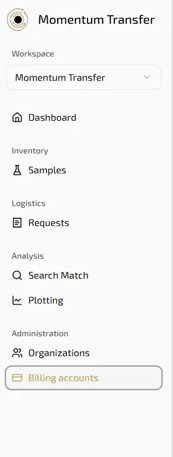
Log in to the data portal at https://app.momentum-transfer.com. In the left sidebar, scroll down and click on Billing accounts.
Step 2: Create a Billing Account
On the Billing accounts page, click the + Create billing account button.
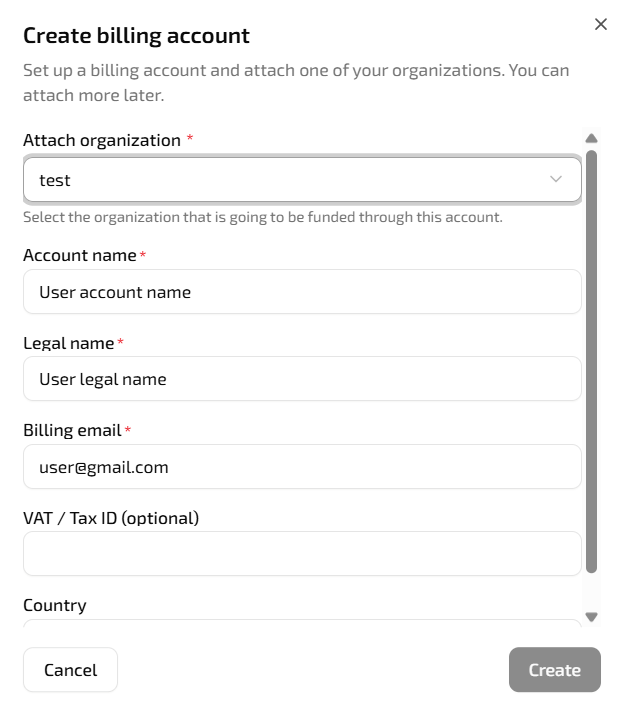
A form will appear asking you to fill in the following details:
- Attach organisation — select the organisation that will be funded through this account
- Account name — enter a name for your billing account
- Legal name — enter the legal name of your institution or company that would be reflected on the invoice
- Billing email — enter the email address where invoices should be sent
- VAT / Tax ID (optional) — enter your VAT or tax identification number. Please note the following:
- Companies based within the EU — we strongly recommend adding your VAT number to avoid being charged 19% German VAT on your invoice.
- Companies based outside the EU — no VAT number is required
- Country — select your country
- Address — fill in your full billing address
Once all required fields are complete, click Create to set up your account.
Step 3: Buy Credits
Once your billing account has been created, open it and click the Buy credits button in the top right corner.
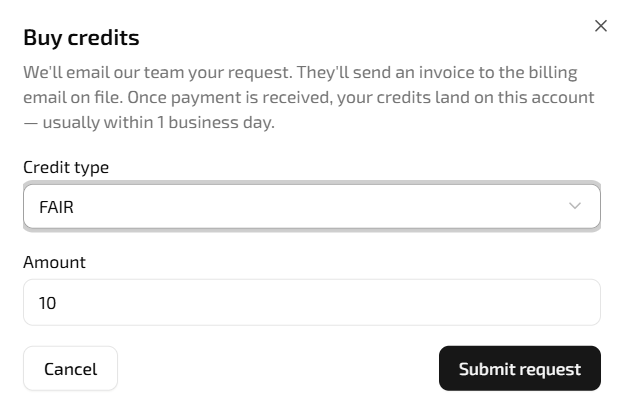
A pop-up will appear with the following options:
- Credit type — select either FAIR (data shared in open-access database after 2 years) or Proprietary (data remains fully private)
- Amount — enter the number of credits you would like to purchase
Once you submit your request to buy credits, our team will be notified and will send a quote to the email address of the purchaser on file. Credits will be added to your account usually after the signed quote has been returned or the Purchase Order has been issued.
Step 4: Submit Your Request
Once your credits are in place, you can proceed to create your measurement request and add your samples as usual.
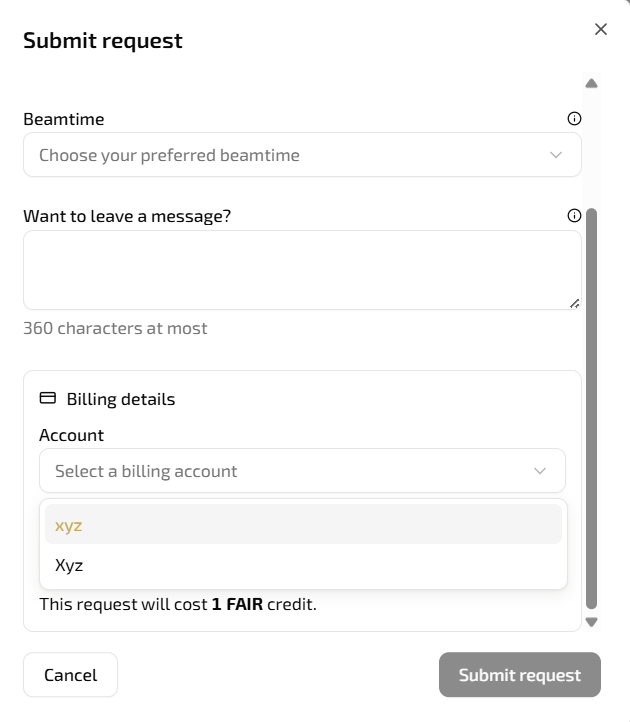
Step 5: Select Your Billing Account When Submitting a Measurement Request
When submitting your request, a pop-up will appear. Under Billing details, select the billing account you set up in Step 2, choose your preferred beamtime, and confirm your credit type. Once everything looks correct, click Submit request to proceed.
If you have any questions at any stage, please do not hesitate to contact us at team@momentum-transfer.com.