
Every request in the app is linked to an organization. Each organization can have one owner and multiple team members. To submit a request, you must be registered and belong to an organization. During the registration process, you will be asked to create your organization, so if you’re already registered, you already own at least one. You can also invite colleagues to join your organization by following the steps below.
- In order to invite a user to your organization, the user must first register on momentum-transfer.com (How to Register in the App).
- Access the Momentum Transfer data portal by logging in to your account. momentum-transfer.com
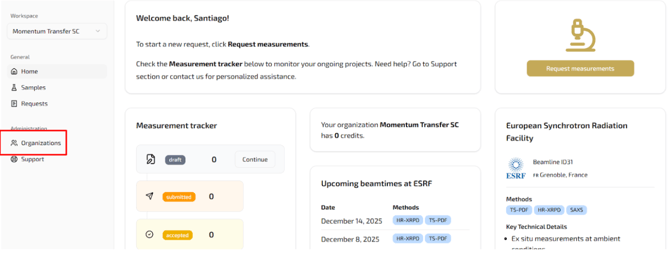
- Click on 'Organizations' in the left menu.
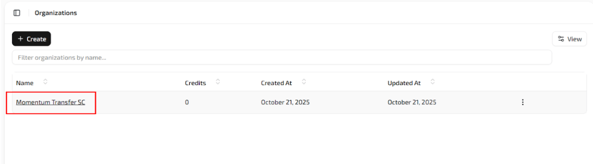
- Click directly on your organization name (it will appear underlined when you hover your cursor over it).
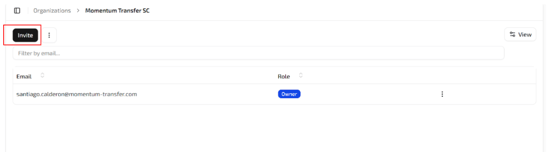
- You should now see the “Invite” button—click on it.
- Enter your colleague’s email address and press 'Invite'. (They must already have a Momentum Transfer account.)
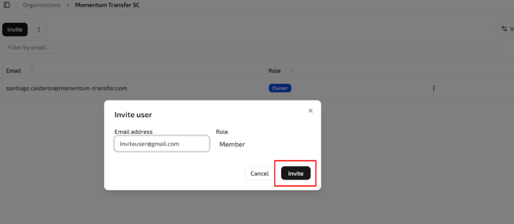
- Once invited, they’ll appear as a member and will have access to your organization.
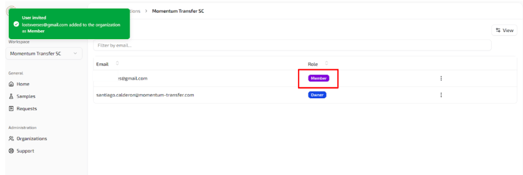
Congratulation! You have successfully added a new user to your organization.